
UnScreen App Review: Remove Video Background Easily
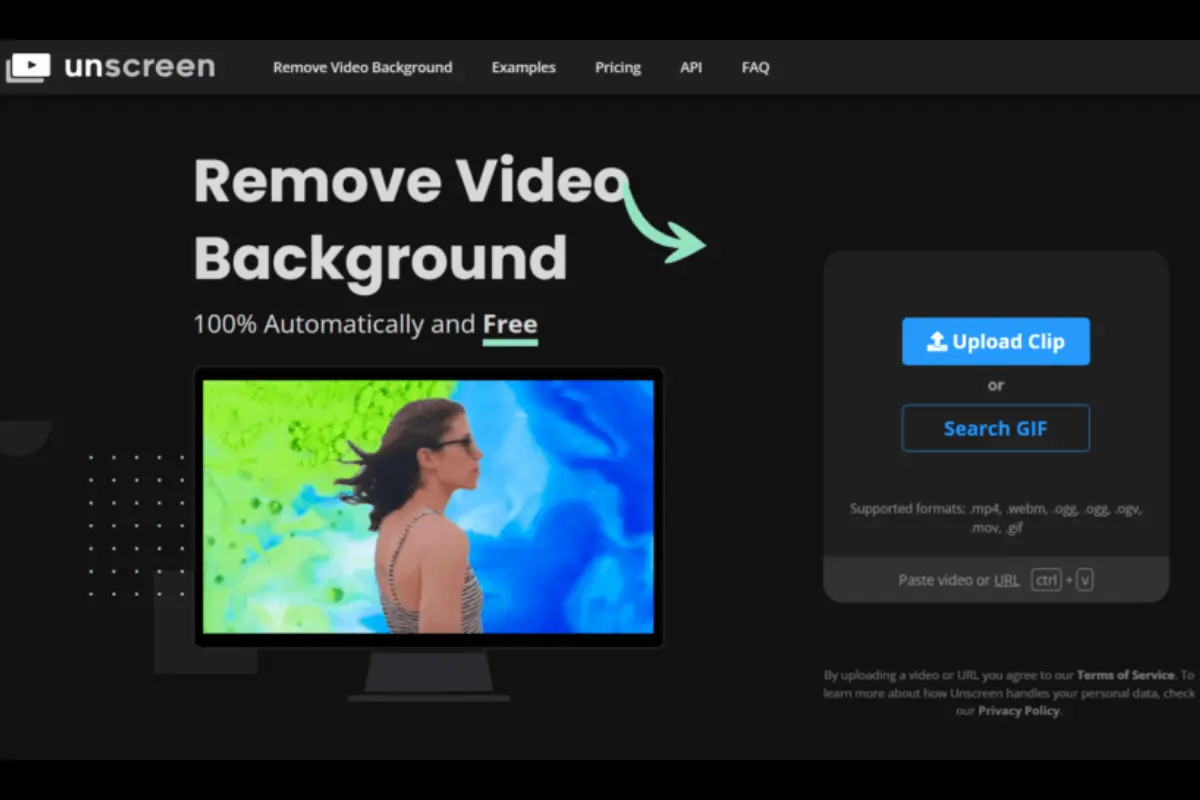
UnScreen is an AI-powered tool that helps users remove backgrounds from videos automatically. Unlike traditional video editing software that needs green screens, manual masking, or frame-by-frame work, UnScreen does everything on its own using artificial intelligence. This makes it very useful for beginners, content creators, marketers, teachers, and small businesses.
The app is mainly known for its video background removal feature, which works without complex settings. You simply upload a video, and UnScreen removes the background for you. Because of this simplicity, UnScreen has become popular among people who want quick results without learning professional editing skills.
What Is UnScreen and How It Works
UnScreen is an online AI tool developed to automatically separate the foreground (person or object) from the background in a video. The AI detects motion, edges, and human shapes to remove the background frame by frame.
You don’t need a green screen, special lighting, or editing knowledge. The process is simple. You upload your video, wait for the AI to process it, and then download the output. The tool gives options like transparent background, solid color background, or custom background images.
UnScreen works directly from a web browser, so there is no heavy software installation needed. There is also a plugin available for Adobe Premiere Pro and After Effects, which makes it useful for professional editors as well.
Features of UnScreen App
One of the biggest strengths of UnScreen is its automatic background removal. This feature saves a lot of time compared to manual editing. The AI handles the most common scenarios like talking head videos, people walking, hand movements, and simple object motion.
UnScreen supports video uploads in common formats, making it compatible with most cameras and mobile phones. After processing, users can export videos with transparent backgrounds or add new backgrounds easily.
Another useful feature is its GIF support. You can upload GIFs and remove their background as well, which is helpful for social media posts and marketing creatives.
The interface is clean and easy to understand. Even first-time users can figure out how to use it within minutes. There are no confusing menus or technical terms, which makes it beginner-friendly.
Also Read:
Mixkit App Review and How It Works for Free Stock Videos & Music
Video Quality and Performance
UnScreen gives decent results, especially for clear videos with good lighting. The AI works best when the subject is clearly visible and separated from the background. Videos with plain or less busy backgrounds produce better output.
In complex scenes with multiple people, heavy shadows, or fast movement, the results may not always be perfect. Some edges can look soft or slightly inaccurate, especially in the free version.
Processing time depends on video length and server load. Short videos usually process quickly, while longer videos take more time.
Free Version vs Paid Version
UnScreen offers a free version, but it comes with limitations. Free users get videos with watermarks, lower resolution, and fewer export options. The free version is mainly useful for testing or basic personal use.
The paid version removes watermarks, improves quality, and allows longer videos. Paid plans are more suitable for content creators, businesses, and professionals who need clean output for commercial use.
Pricing is generally higher compared to basic background removal tools, but the value comes from automation and time saving.
Who Should Use UnScreen
UnScreen is ideal for:
-
YouTubers and video creators who need quick background removal
-
Social media marketers are creating short videos
-
Teachers and online course creators
-
Small businesses making promo videos
-
Beginners who don’t know advanced editing software
It may not be the best choice for:
-
High-end film production
-
Videos with very complex motion or crowded scenes
-
Users who want full manual control over masking
Also Read:
Pros and Cons of Unscreen
UnScreen has many advantages. The biggest one is that it works automatically, without green screens or editing skills. It saves time and reduces effort. The tool is easy to use and accessible from any browser.
However, it also has some downsides. The free version has watermarks and limited quality. The paid version can feel expensive for casual users. Also, AI results are not always perfect in complex scenes.
Tips to Get Better Results with UnScreen
To get the best output from UnScreen, record videos in good lighting. Make sure the subject is clearly visible and not blending with the background. Avoid shaky footage and fast camera movement.
Plain backgrounds work better than busy ones. If possible, keep a distance between the subject and the background. This helps the AI detect edges more accurately.
Using shorter clips also improves performance and processing speed.
Final Verdict: Is UnScreen Worth Using?
UnScreen is a useful AI tool for quick and simple video background removal. It is not meant to replace professional video editing software, but it does a great job for everyday creators and businesses.
If you want fast results without learning complex tools, UnScreen is worth trying. The free version is good for testing, while the paid version makes sense for regular content creation.
Overall, UnScreen delivers what it promises: easy, automatic video background removal using AI.