RemoveWindowsAI: How to Disable or Remove AI Features from Windows Safely

Windows have changed a lot in recent years. Along with regular updates and security improvements, Microsoft has added more AI-based features to Windows. These include AI assistants, background AI services, smart suggestions, cloud-connected features, and system processes that use artificial intelligence. While some users find these features useful, many people want more control over their system. This is where RemoveWindowsAI comes in.
RemoveWindowsAI is a utility or approach designed to help users disable or remove AI-related features from Windows safely, without breaking the operating system. It is mainly used by people who want better performance, more privacy, fewer background services, or a cleaner Windows experience.
This guide explains what RemoveWindowsAI is, why people use it, and how to disable Windows AI features properly in simple, easy-to-understand language.
What Is RemoveWindowsAI, and why do People Use It
RemoveWindowsAI is not just about deleting files. It focuses on safely disabling AI features, services, and integrations that come built into Windows. These AI components can include digital assistants, AI-powered recommendations, telemetry-based smart features, background AI services, and cloud-linked AI tasks.
Many users choose RemoveWindowsAI for practical reasons. Some want better system performance, especially on older or low-end PCs. Others are concerned about privacy and do not want AI features sending usage data to the cloud. Some users simply prefer a traditional Windows experience without AI prompts, pop-ups, or suggestions.
Another common reason is control. Advanced users, developers, and professionals often want full control over what runs in the background. AI features can consume RAM, CPU, and network bandwidth even when they are not actively used. RemoveWindowsAI helps reduce that overhead.
How RemoveWindowsAI Works in Windows
RemoveWindowsAI works by targeting AI-related services, settings, and components, rather than core Windows functions. This is important because directly deleting system files can cause crashes or update failures. A safe approach focuses on disabling, blocking, or restricting AI features instead.
The process usually involves a combination of Windows settings changes, service management, group policy adjustments, registry edits, and optional scripts or tools. When done correctly, Windows continues to function normally, receive updates, and remain stable.
RemoveWindowsAI does not remove essential Windows features like File Explorer, updates, drivers, or security protections. It focuses only on AI layers added on top of the system.
How to Disable or Remove Windows AI Features Safely
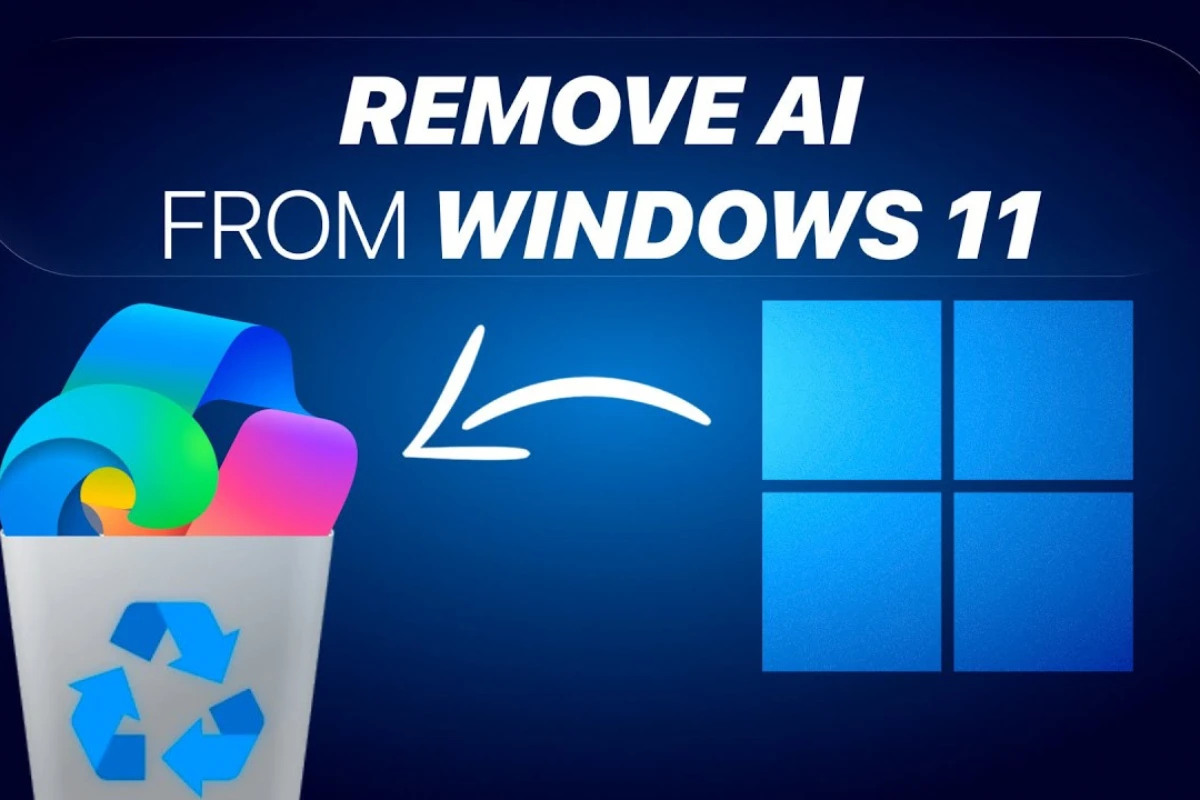
The safest way to use RemoveWindowsAI is step by step. First, always create a system restore point. This allows you to roll back changes if something goes wrong. Even safe changes should always be reversible.
Start by reviewing Windows settings. Many AI features can be disabled directly from the Privacy, Personalization, and System sections. Turning off suggestions, cloud-based recommendations, and smart input features already reduces AI activity.
Next, background services can be managed. Windows runs several services related to AI assistants, smart search, and data analysis. Disabling non-essential services reduces resource usage. This should be done carefully, disabling only services clearly linked to AI features.
Advanced users may choose to use group policy or registry settings to permanently block certain AI components from re-enabling themselves after updates. This step gives long-term control but should be done only after proper research.
Some users use RemoveWindowsAI scripts or utilities created specifically to automate this process. These tools usually apply safe, tested settings in one click. When using such tools, always download them from trusted sources and review what changes they make.
Pros & Cons:
| Pros | Cons |
|---|---|
| Improves system performance and responsiveness | Some smart features will no longer work |
| Reduces background services and resource usage | Incorrect changes can affect system behavior |
| Enhances privacy and reduces data collection | Windows updates may re-enable some features |
| Cleaner, distraction-free Windows experience | Not recommended for beginners without guidance |
Benefits of Removing AI Features from Windows
One of the biggest benefits is improved performance. Removing unnecessary background AI services frees up system resources, especially RAM and CPU. This can make Windows feel faster and more responsive.
Privacy is another major benefit. Many AI features rely on data collection to function properly. Disabling them reduces data sharing and cloud communication, which is important for privacy-focused users.
Users also experience fewer interruptions. AI suggestions, prompts, and notifications can sometimes feel distracting. Removing them creates a cleaner and quieter desktop experience.
For professionals and developers, RemoveWindowsAI provides consistency. Systems behave more predictably without AI features changing behavior based on usage patterns.
Is RemoveWindowsAI Safe to Use?
RemoveWindowsAI is safe when done correctly. The key is avoiding aggressive file deletion and focusing on disabling features through supported methods. Always back up your system before making changes, and avoid unknown tools that promise “full AI removal” without explaining how they work.
Windows is designed to be modular, and many AI features are optional layers. Disabling them does not damage the core operating system when handled properly.
Final Thoughts
RemoveWindowsAI is a practical solution for users who want more control over their Windows system. It is not about breaking Windows or removing updates. It is about choosing which features you want and which you do not.
For performance-focused users, privacy-conscious individuals, and professionals who prefer a traditional setup, disabling Windows AI features can make a noticeable difference. With careful steps and the right approach, RemoveWindowsAI helps create a cleaner, faster, and more predictable Windows experience.
Frequently Asked Questions (FAQs)
1. What does RemoveWindowsAI actually remove?
It disables or blocks AI-related features, services, and integrations, not core Windows functions.
2. Will Windows stop working after removing AI features?
No, if done correctly. Windows continues to function normally and receive updates.
3. Can Windows updates bring AI features back?
Yes, major updates may re-enable some AI features, so settings may need to be reapplied.
4. Is RemoveWindowsAI suitable for beginners?
Basic settings are safe for beginners, but advanced steps should be done carefully.
5. Does removing AI features improve gaming performance?
It can help slightly by freeing system resources, especially on lower-end systems.
6. Can I restore AI features later?
Yes, most changes are reversible if you use restore points or re-enable settings.
7. Is RemoveWindowsAI legal and allowed?
Yes, users are allowed to customize Windows settings on their own systems.
Also Read:
Wondershare Filmora Review: Price, Features, How to Use, Pros and Cons