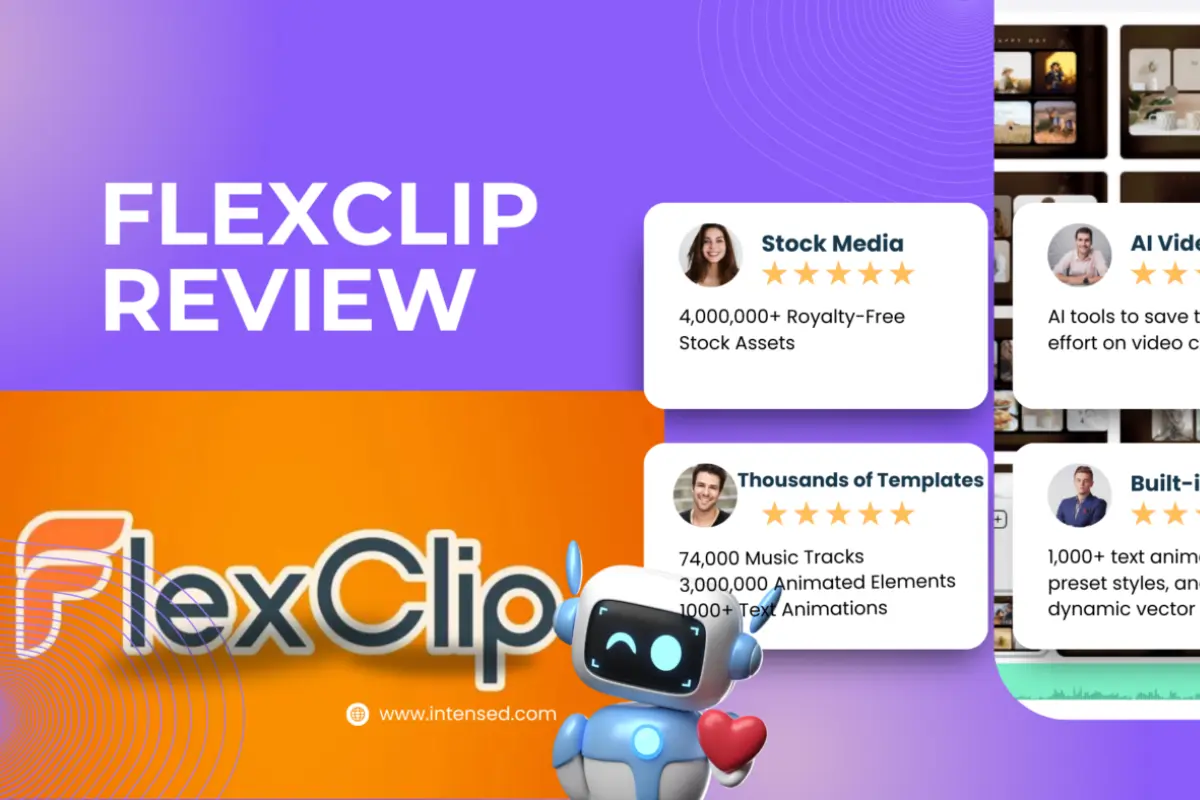
FlexClip Review: Simple Online Video Editor for Everyday Users
Creating videos today is not just for professionals. Small businesses, students, creators, and marketers all need quick video tools. FlexClip positions itself as an easy online video editor made for everyone. This review looks at what FlexClip really offers, where it works well, and where it falls short.
All details shared here are based on real features, actual usage flow, and verified sources.
What Is FlexClip and Who Is It For
FlexClip is a browser-based video editor developed by PearlMountain. It is designed for people who want to create videos without installing heavy software. You can use it directly from Chrome, Edge, or Safari.
FlexClip mainly targets beginners, small business owners, social media users, and educators. It is not meant to replace professional tools like Adobe Premiere Pro. Instead, it focuses on speed, simplicity, and ready-made templates.
You can create marketing videos, YouTube clips, slideshows, reels, and basic explainers using simple drag-and-drop tools.
Ease of Use and Editor Experience
FlexClip’s interface is clean and easy to understand. Even first-time users can start editing without watching long tutorials. Everything is labeled clearly, and the editor loads fast in most browsers.
The timeline is simple and not crowded. You can add text, images, video clips, music, and transitions without confusion. For basic editing, FlexClip feels smooth and beginner-friendly.
Key usability highlights:
-
No software download needed
-
Works fully inside the browser
-
Simple drag-and-drop editing
-
Beginner-friendly layout
However, advanced users may find the controls limited. There are fewer manual settings compared to professional editors.
Templates, Stock Assets, and Media Library
One of FlexClip’s strongest points is its template library. It offers hundreds of templates for different use cases like business promos, Instagram videos, YouTube intros, real estate, and events.
FlexClip also includes a built-in stock library. You get access to free and premium stock videos, photos, icons, and background music. This helps users create videos without uploading their own content.
Available assets include:
-
Stock videos and images
-
Background music tracks
-
Icons and animated elements
-
Pre-designed text styles
Most free assets are usable, but premium plans unlock higher quality media and remove restrictions.
Editing Features and Tools
FlexClip covers all essential editing features needed for basic to medium-level video creation. You can trim clips, split videos, add overlays, and insert transitions easily.
Text editing is one of FlexClip’s strong areas. You can add animated text, captions, and titles with preset styles. This is helpful for social media and promo videos.
Main editing features include:
-
Video trimming and splitting
-
Text animation and overlays
-
Image and video transitions
-
Background music and voiceover
-
Aspect ratios for social platforms
Advanced features like multi-layer timelines, color grading, and motion tracking are not available.
AI Features and Automation Tools
FlexClip has introduced some AI-powered tools that help speed up video creation. These tools are useful for non-technical users who want fast results.
AI features currently include:
-
AI text-to-video
-
AI script generation
-
AI auto subtitle tool
-
AI image generation (limited)
These tools work well for simple projects. The AI output is decent but not perfect. Manual edits are still needed for accuracy and better storytelling.
Export Quality and Performance
FlexClip allows video exports in different resolutions depending on your plan. Free users can export up to 480p or 720p with a watermark. Paid plans unlock Full HD and higher quality.
Rendering speed depends on video length and browser performance. For short videos, export times are reasonable. Long videos may take more time, especially on lower-end systems.
Export options include:
-
Multiple aspect ratios
-
Social media-ready formats
-
Watermark removal (paid)
There is no offline export option since everything runs online.
Pricing Plans and Limitations
FlexClip follows a freemium pricing model. You can use it for free with limitations. Paid plans remove watermarks and unlock premium assets.
Pricing depends on monthly or yearly plans and may vary by region. Paid plans are affordable compared to professional editing software.
Free plan limitations:
-
Watermarked exports
-
Limited resolution
-
Restricted stock assets
Paid plans are suitable for small businesses and creators who publish regularly.
Crouton App Review – Is It the Best Recipe & Meal Planner App
Real-World Pros and Cons
Pros
-
Very easy to use
-
No installation required
-
Good template library
-
Useful for social media videos
-
Affordable pricing
Cons
-
Limited advanced editing tools
-
Internet required at all times
-
Not suitable for professional filmmaking
FlexClip works best for speed and simplicity, not complex editing.
Final Verdict: Is FlexClip Worth Using?
FlexClip is a solid choice for beginners, marketers, teachers, and small business owners. It delivers exactly what it promises: simple video creation without technical headaches.
If you need quick promo videos, slideshows, or social content, FlexClip is worth trying. If you need advanced cinematic editing, this tool may feel limited.